Besides simulation and CAM Turning, MultiPath includes tools for everyday work with programs: from machine setup through code checking and comparison to the setup sheet for the operator.
Machine Configuration and Machine Templates
In Machine Configuration you set up the machine exactly as it stands in your shop. You choose the control (Fanuc, Siemens 840D, Mitsubishi, Fagor, Okuma or Haas), single-channel or dual-channel mode, and for each channel the direction of the X and Z axes, plus the Z offset for a sub-spindle. A preview in the dialog immediately shows how the axes will be oriented.
You also set the range of synchronization M-codes, the G28 reference point with the axis return order, the rapid traverse rate and tool change time for cycle time calculation, coordinate format without a decimal point, and the display of the insert, holder and collision checking. Presets are ready for a machine with two turrets above the centreline, with an upper and lower turret, for the Doosan Puma MX and for a sub-spindle.
You save your own configuration as a template and in this way define every machine in your shop. The configuration is also stored in the project, so the program always opens with the right machine.
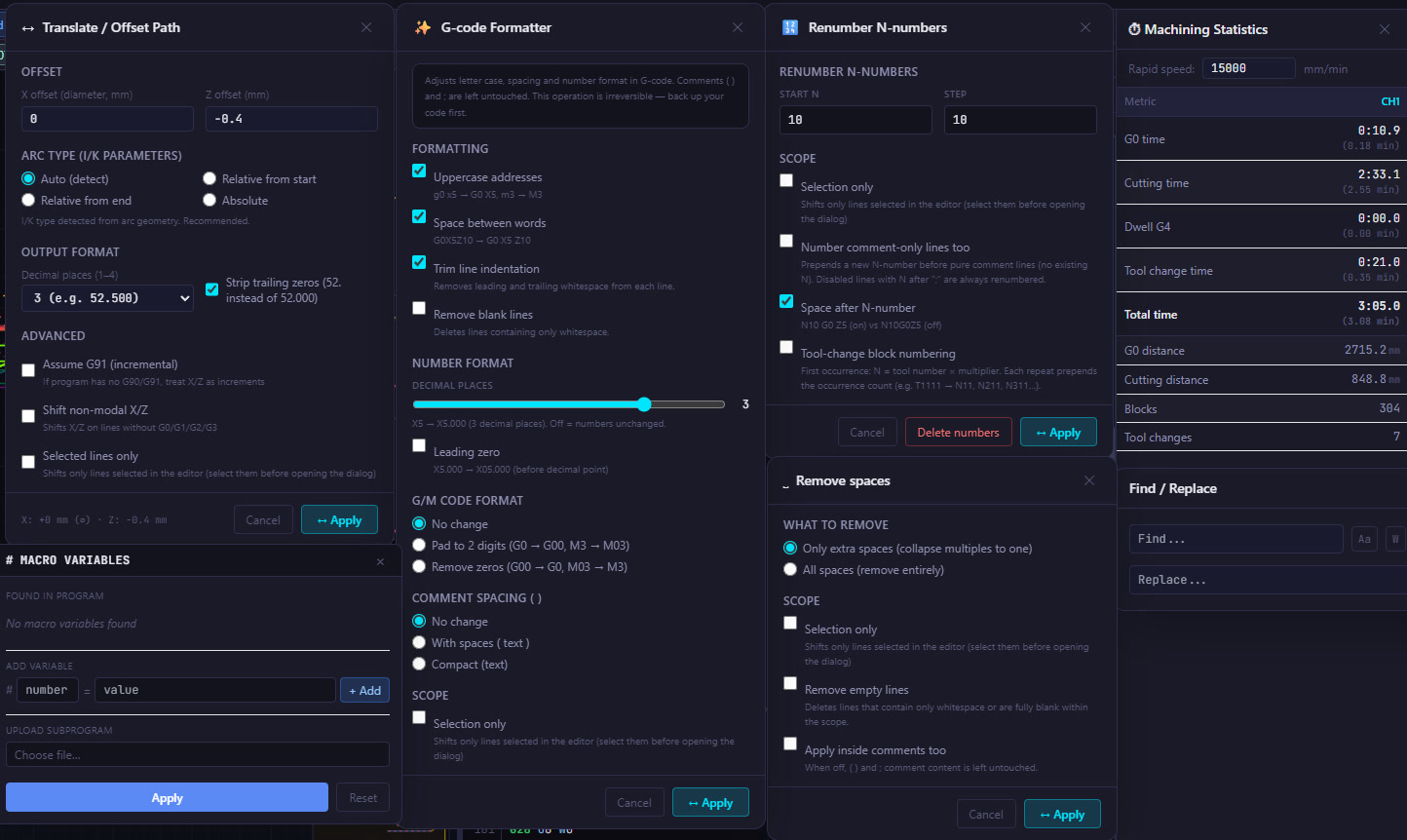
Fanuc Macro B Variables
MultiPath reads #variables and evaluates incremental values, arithmetic expressions and IF/GOTO branches with their actual values. Variables are read directly from the program and from its comments. If they are not defined in the main program, you add them manually or load a subprogram from which MultiPath reads them on its own.
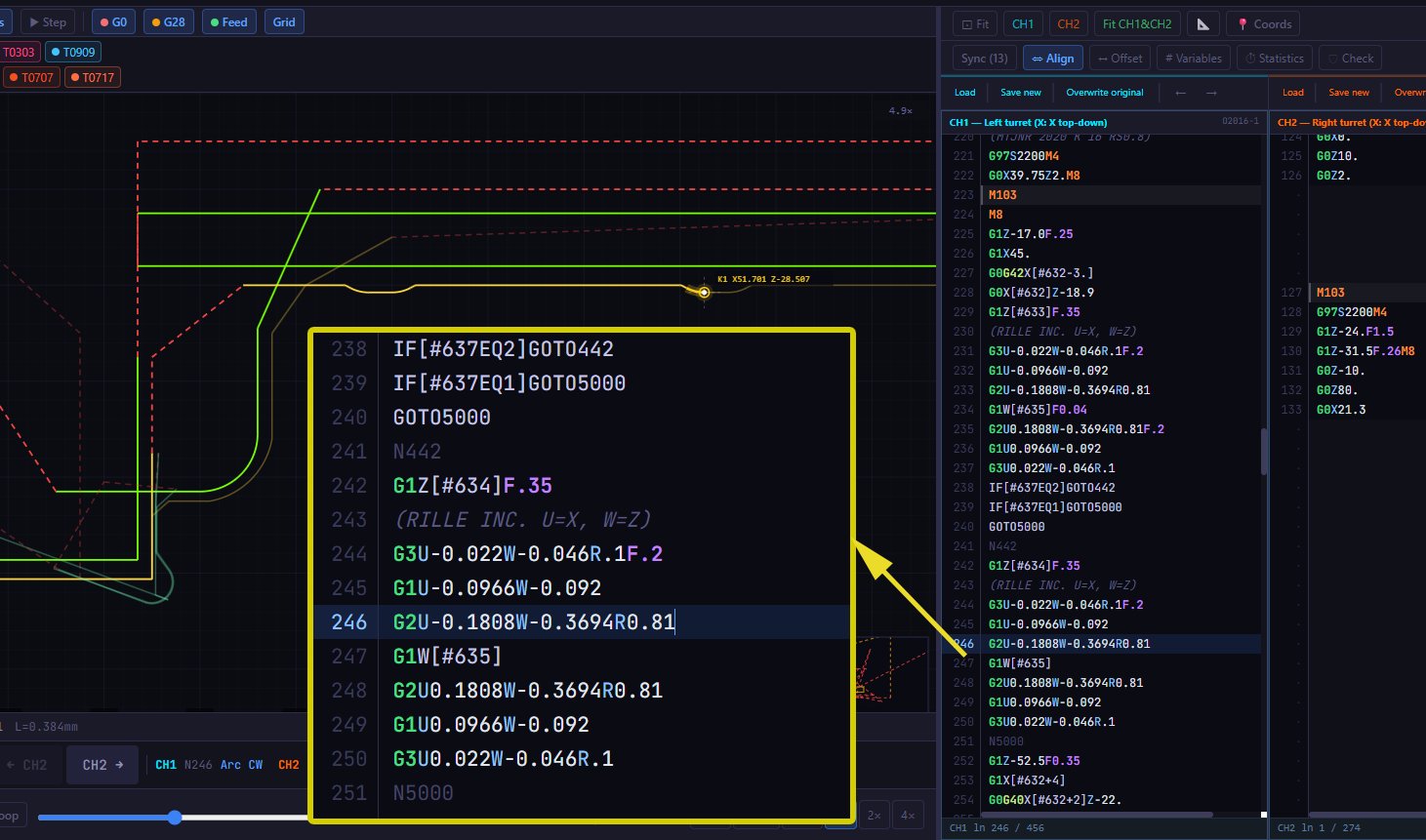
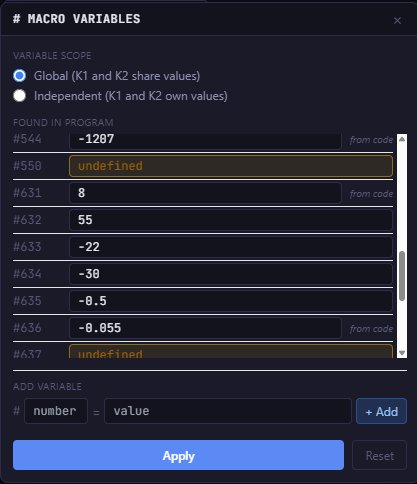
Before starting the simulation you can change the value of any variable, and undefined variables are highlighted, so you immediately see what is missing in the program. For a dual-channel program you choose a global scope, where CH1 and CH2 share values, or an independent one, where each channel has its own variables.
Setup Sheet Generation
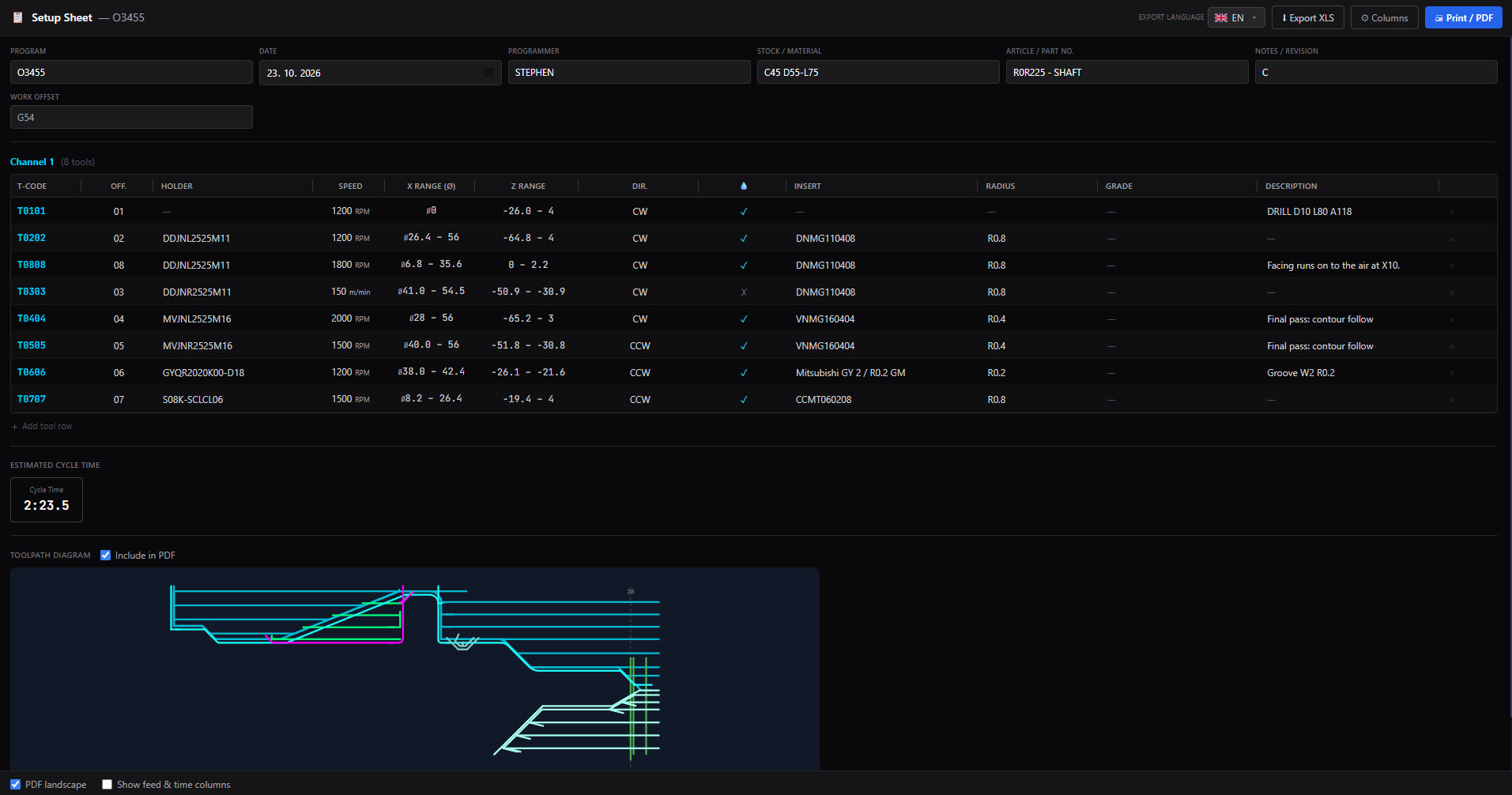
The setup sheet is created from the program with a single click. For each channel separately, the tool table contains the tool number and offset, description, cutting speed or spindle speed, spindle speed limit, X and Z range, spindle direction, coolant, feed rate, estimated time, insert, nose radius and holder. Tool data is filled in automatically from the comments that CAM Turning writes into the program, and the setup sheet can also read it from the comments in your own programs.
In the header you add the program, date, programmer, stock, part number and notes. You can overwrite any cell, add your own row, hide one you do not need, or choose which columns are shown. A toolpath graphic can be attached to the table. You print the setup sheet to PDF or export it to Excel, and all edits are saved with the project.
G-code Check
Before the program goes to the machine, it is checked against about 57 rules. The issues found are sorted into four levels from critical to informational, and clicking an item takes you straight to the line in the editor. You can check one channel or both at once.
It catches errors that would otherwise only show up at the machine: forgotten compensation, a missing spindle speed limit, a move without feed or with the spindle stopped, an incorrectly called tool, or unpaired channel synchronization. For Siemens 840D it has additional checks of its own.
G-code Diff
You compare the current program with a file from disk, for example the version the operator edited at the machine. In text mode both versions are shown side by side with synchronized scrolling, added, removed and changed lines are colour-coded, and within a changed line the exact characters that changed are highlighted, for example F0.2 to F0.23. Block numbers N can be ignored for the comparison.
In graphic mode you see the original and the new toolpath on two canvases with shared zoom. Changed segments are highlighted in red and green, and unchanged ones can be dimmed or hidden completely. The list of changes on the left takes you to each change in the text and in the toolpath with a click.
ISO Tolerances and Machining Calculator
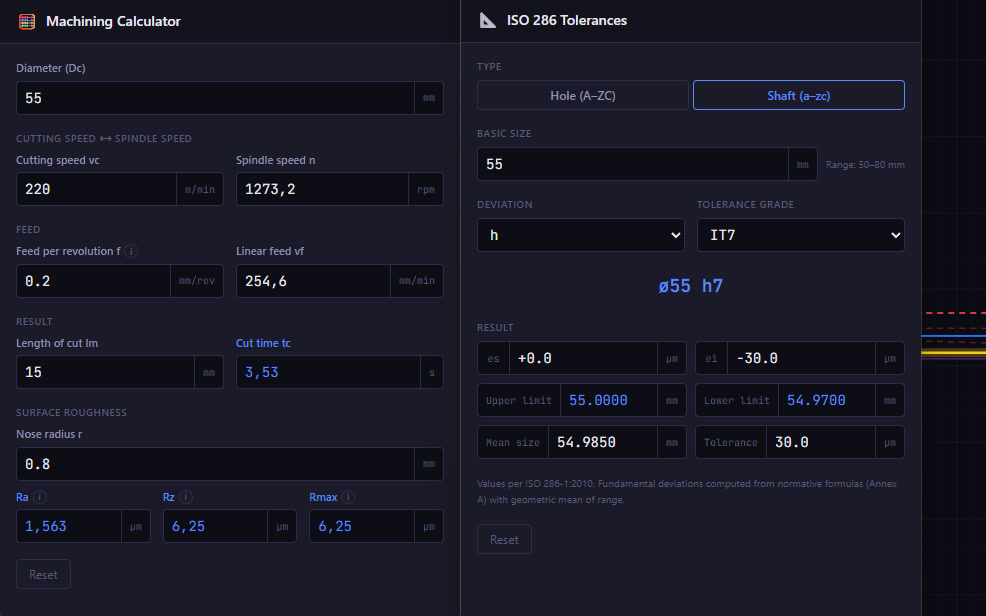
The ISO tolerance calculator works according to ISO 286-1:2010 for holes and shafts, with all 28 fundamental deviations, grades IT01 to IT18 and nominal sizes up to 3,150 mm. You instantly get the upper and lower deviation, tolerance width, limits of size and mean size.
The machining calculator converts between spindle speed and cutting speed in both directions, between feed per revolution and feed per minute, and calculates cutting time and the theoretical surface roughness Ra and Rz based on the nose radius. It works in millimetres and inches.
DXF Import and Export
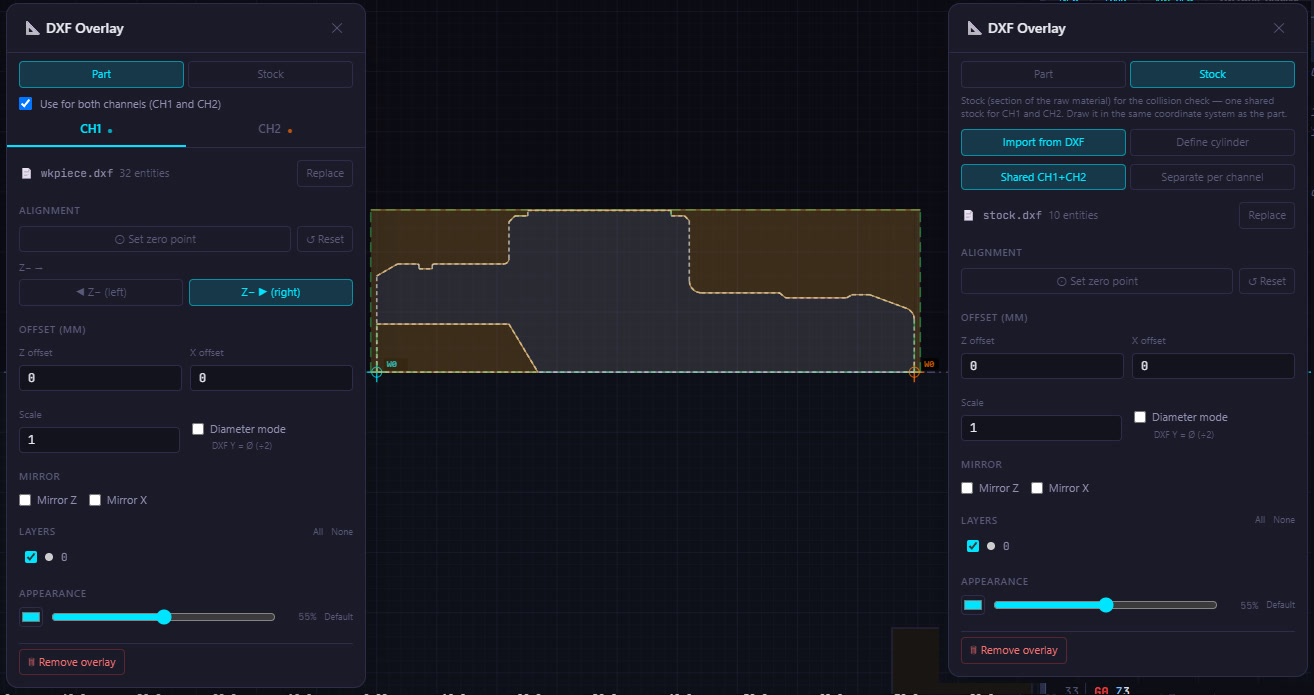
You load the DXF drawing of the part and the stock as an underlay directly beneath the simulated toolpaths. Lines, arcs, circles, polylines, splines, ellipses and blocks are supported, and the layers, colours and units of the drawing are respected. You set the zero point by clicking in the drawing, and you can move, mirror or scale the drawing. The stock is removed step by step during the simulation, and measurements snap to both the toolpath and the drawing geometry.
You export simulated toolpaths back to DXF. Layers are named automatically by channel and move type, for example CH1_FEED and CH1_RAPID, or by tool, for example CH1_T0101.
More Tools for the Programmer
Offset shifts the toolpath in X and Z for one or both channels and correctly recalculates the I and K arc centres, taking G90, G91 and diameter mode into account. Formatting unifies the way code is written: upper case, spaces between words, number of decimal places, G00 or G0, comment style. Renumbering sets the start and increment of N blocks, or numbers them by tool. All of these edits can be applied to selected lines only.
Find and Replace supports whole words and regular expressions. Machining statistics show rapid, cutting, dwell and tool change time, total time, path lengths, and the number of blocks and tool changes, plus the combined time for two channels. There is also a library of your own code snippets, distance and angle measurement directly in the simulation, and around 50 keyboard shortcuts.
Try it on your own programs
All these tools come in one application together with simulation and CAM.
Download free trial