From the part drawing to a finished program without calculating a single point by hand. Load a DXF contour and CAM turns it into roughing and finishing passes, complete with allowances, approach moves and tool nose radius compensation. Grooves and drilling are handled the same way. The generated code goes straight into the editor, and the simulation immediately shows how the real insert in the real holder will machine it.
- Load the part's DXF drawing into the simulator.
- Select the contour to machine — outer (OD) or inner (ID).
- Set the cutting parameters: depth of cut, machining allowance, feed rate, and finishing pass direction.
- Choose the compensation — G40, or G41/G42 with a tool orientation.
- Generate the G-code and insert it directly into your program.
From drawing to toolpath
First you import the DXF drawing of the part. The stock is loaded from DXF as well, or entered as a cylinder. Then you select the contour to machine in the drawing: by clicking individual segments, or, for a long contour, with the Range selection, where you only click the first and the last segment.
Next you set the machining parameters. With every change you immediately see how the toolpath and the generated code change. Finally, one click inserts the code into the editor. If you later need a lighter cut or a different allowance, there is no need to start over: right-click the block, choose Regenerate Toolpath, and CAM recalculates the operation with the new values.
Machining strategies
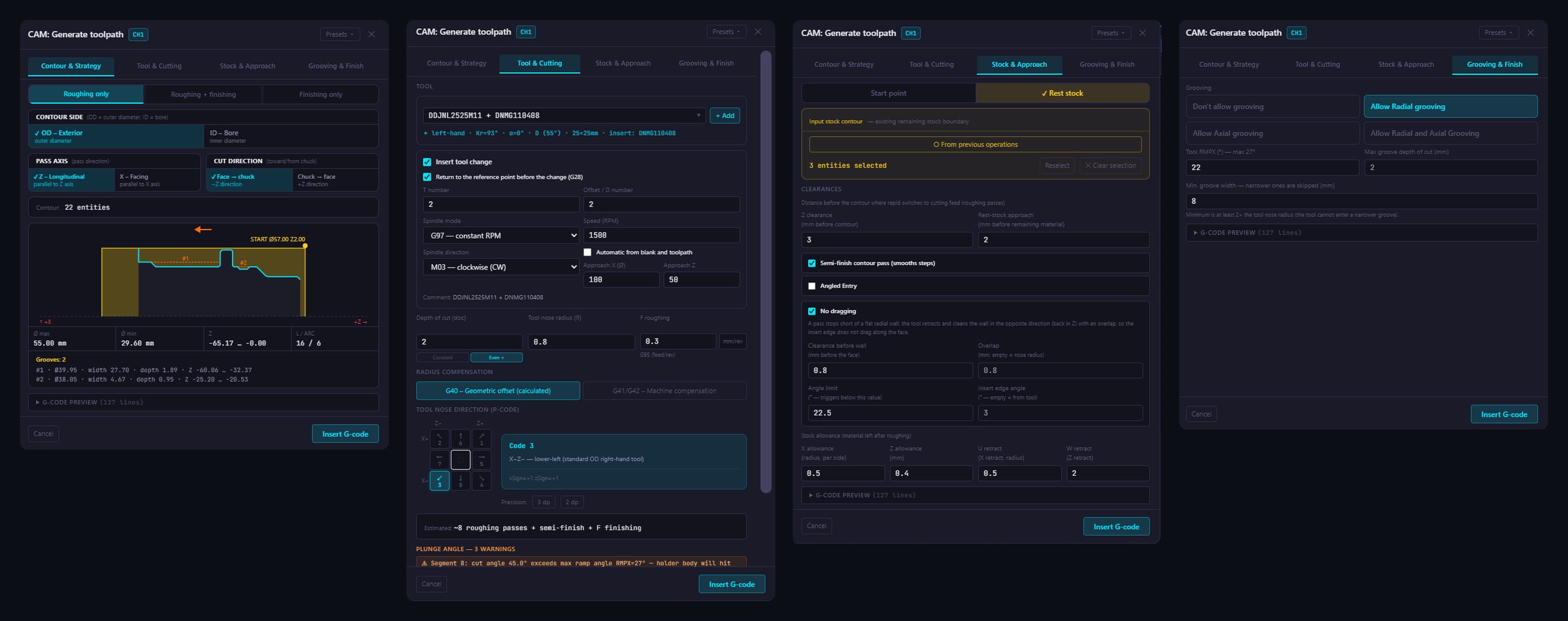
You machine longitudinally or face, on the outside diameter or when boring. The depth of cut can stay constant, or CAM spreads it evenly over the whole allowance. X and Z allowances are entered separately, and a semi-finishing pass can be added between roughing and finishing.
Finishing has its own feed rate and approach type. No Dragging mode makes sure the tool tip does not drag along a vertical wall on the return move and damage the finished surface. CAM machines tapers, chamfers, radii and angled walls without undercutting, and checks before generating that the tool can reach every corner.
If a previous operation has already removed part of the material, CAM knows about it. It determines the remaining material from the simulation or from the DXF stock, so the tool does not waste time cutting air.
Tool nose radius compensation follows the way you program. With G40, CAM recalculates the toolpath to the imaginary tool tip, so the coordinates in the program are already offset by the nose radius. With G41 / G42, the nominal contour stays in the program and the control applies the compensation, either for finishing only or for roughing as well. The tip orientation is set with codes P1 to P8.
Grooves with CAM Grooving
External and internal grooves with straight or angled walls and a radiused bottom, including stepped grooves nested inside each other. Three strategies are available: roughing, roughing with finishing, and finishing only. Depth of cut, plunge overlap, pecking, wall allowances and feed rates are set to suit the material and the tool.
Before the first line is generated, CAM warns you if the tool does not fit into the groove or if its nose radius is larger than the bottom radius. You choose from a library of 166 grooving inserts from Sandvik, Iscar, Kennametal, Garant and Mitsubishi and 136 holders in right-hand and left-hand versions, with widths from 1.5 to 6 mm. If the tool you need is missing from the library, you create your own holder with your own insert in the Holder Editor and save it for later use.
Drilling
For drilling you enter the drill diameter, point angle and depth, and choose whether to drill in a single pass, with peck drilling or with chip breaking. The operation can be written as a cycle (G81, G82, G83, G74) or as expanded ISO G-code with G0 and G1 moves.
A program ready for the machine
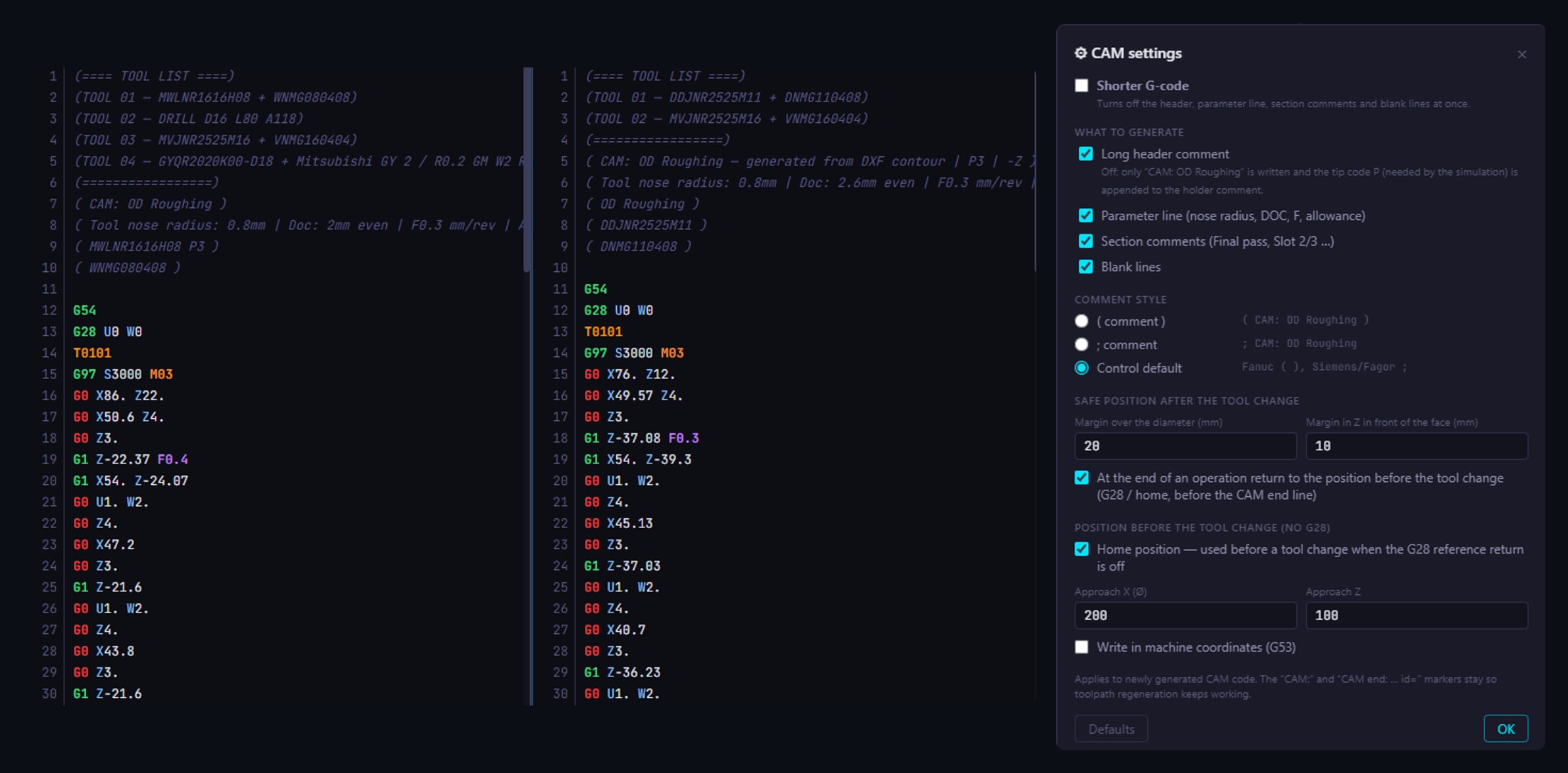
Each operation can start with a complete tool change block with the offset, spindle speed and G96 or G97. CAM adds a list of the tools used at the start of the program and writes the holder, insert and nose radius into the comments, so the setup sheet fills itself in.
The output can be adapted to the conventions of your shop. In CAM settings you choose whether the program contains a header describing the operation, a line with the cutting parameters, comments for individual passes and blank lines, or you switch all of them off at once with Shorter G-code. Comments are written in parentheses, after a semicolon, or automatically according to the control.
You also set the moves around the tool change: the safe distance above the diameter and in front of the face, the return to the pre-change position at the end of the operation, and a home position for machines that do not use the G28 reference return. Coordinates can also be written in the G53 machine coordinate system.
CAM for dual-channel machines
In dual-channel mode you import one or two DXF drawings of the part and the stock and set a separate work zero for each channel. You then generate operations for each channel separately, so the complete program for both turrets, or for the main spindle and the sub-spindle, is prepared in one place.
Generate a toolpath from your own drawing
Load the DXF of your part and have a finished program, verified in the simulation, within minutes.
Download free trial