Version 1.6.2 closes the gap between the simulation and what's actually in the shop. You load the real stock contour as a DXF layer, the simulator draws the actual toolholder and checks for collisions during playback — and if a holder in the catalog doesn't match your ground-down bar, you edit it directly in the simulation. CAM Drilling adds center drilling on the lathe axis, and CAM Grooving gains a full library of grooving holders and inserts.
Tool catalog: holders and inserts for OD, ID and grooving
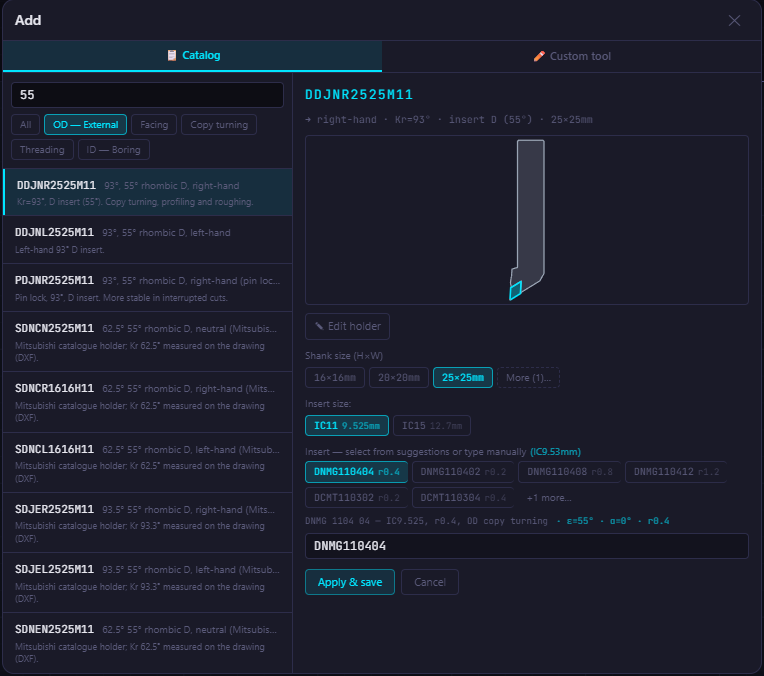
The tool catalog now covers OD turning holders, ID boring bars, and grooving tools with interchangeable inserts. Instead of entering tool geometry by hand, you pick a real holder and insert from the catalog — that data flows into CAM toolpaths, the Setup Sheet, the tool list, and most importantly, into holder collision detection.
- Search: type a code fragment or property (
SCLCR,95°,55) — the list filters instantly. Categories: OD external, facing, copy turning, threading, ID boring. - Holder preview: silhouette with insert, hand (right/left), approach angle Kr, and insert shape.
- Shank size and insert IC: switch between 16×16, 20×20, 25×25… — only inserts that physically fit the chosen holder are shown.
- Insert selection: standard nose radii (r0.2 / r0.4 / r0.8 / r1.2) or type your own ISO code. The app parses and explains the code on the fly.
- Custom tool: build an ISO code position by position. Saved custom tools are never overwritten by updates.
DXF Overlay: separate layers for part and stock
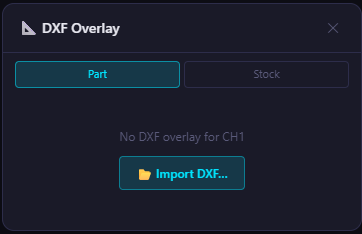
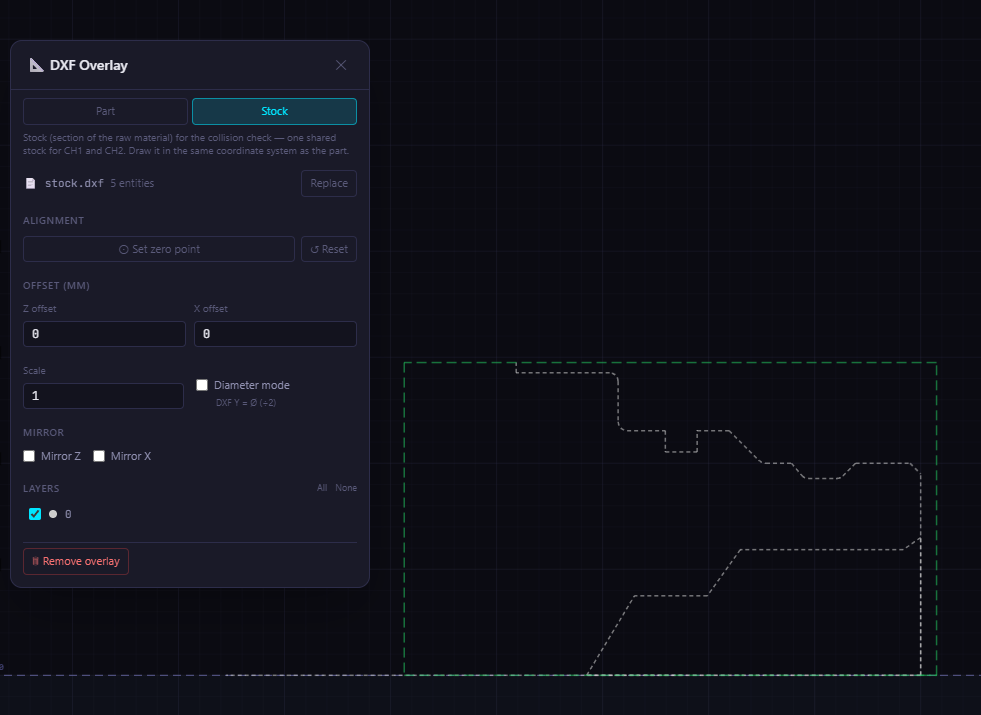
The DXF Overlay panel now has two tabs: Part (the finished part contour) and Stock (the raw material cross-section — bar stock, casting, or pre-machined blank). Each is an independent layer with its own origin, Z/X offset, scale, mirroring, and visible layers list.
- Part shows under the toolpath as a reference, and is the contour source for CAM operations.
- Stock tells the simulator where solid material is, enabling holder collision detection against the actual workpiece material.
- Draw both in the same coordinate system as the part program.
- The zero point can be set by clicking directly on the canvas, separately for each layer.
- When you import a stock DXF, Stock from DXF in collision detection is enabled automatically.
New visibility toggles: Stock, Workpiece, Label, DXF
| Toggle | What it does |
|---|---|
| Stock | Colors the stock with a transparent orange fill. As the simulation plays, the fill shrinks to match the material already removed. Without a program loaded, it shows the DXF stock as-is. |
| Workpiece | Colors the finished part (from the Part DXF) with a transparent gray fill. Requires the Part layer and DXF toggle active. |
| Label | Shows a live label next to the tool with current X (diameter) and Z values and the channel identifier. |
| DXF | Shows or hides all DXF layers (both Part and Stock). |
Holder collision detection
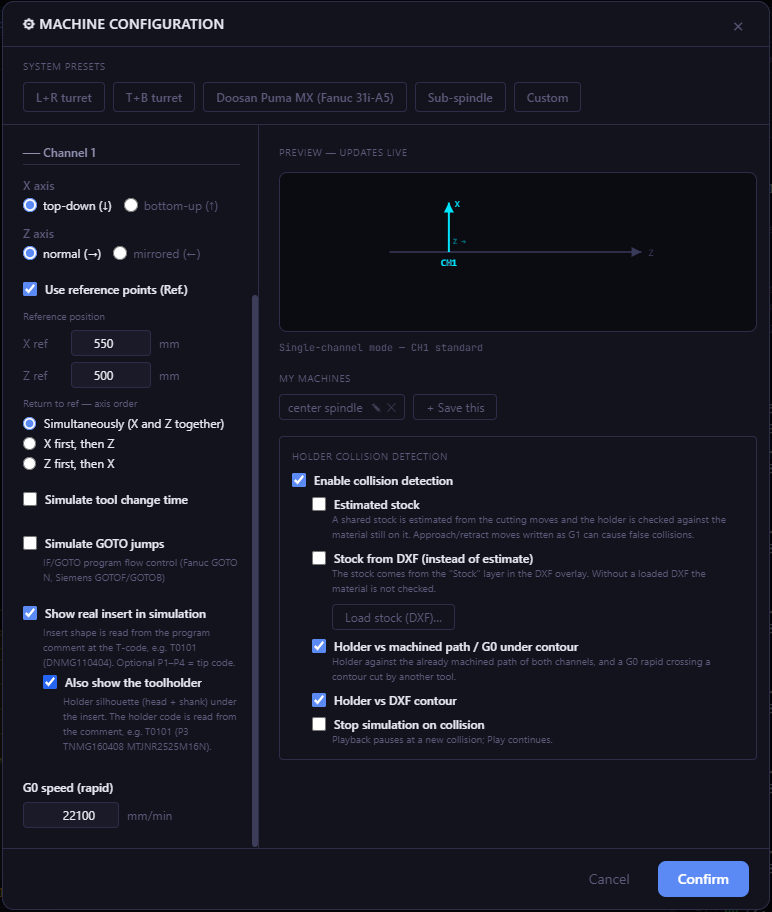
Once a holder and insert are defined (via the T-code comment in the program), the simulator can draw them and check whether the holder body enters the material during playback.
Enable in Machine Configuration:
- Turn on Show real insert in simulation.
- Turn on Also show the toolholder.
- The Holder collision detection panel unlocks. Without both options active, the panel is grayed out.
| Option | What it does |
|---|---|
| Enable collision detection | Master switch for detection and the red collision outline. |
| Estimated stock | Stock is estimated from the cutting moves in the program. |
| Stock from DXF | Uses the Stock layer from DXF Overlay. Enabled automatically when a stock DXF is loaded. More accurate than estimation. |
| Holder vs machined path / G0 under contour | Checks the holder against the already-machined path of both channels and rapid moves below a contour cut by another tool. |
| Holder vs DXF contour | Checks the holder against the imported DXF part contour. |
| Holder vs holder (K1 × K2) | On 2-channel machines: checks K1 holder against K2 holder at every moment in time. |
| Stop simulation on collision | Pauses playback when a new collision is detected. Resume with Play. |
On rapid moves (G0), the insert itself is checked. On cutting moves, the holder body is checked. The part of a boring bar below the axis is projected onto the opposite wall.
How a collision looks — and why it happened
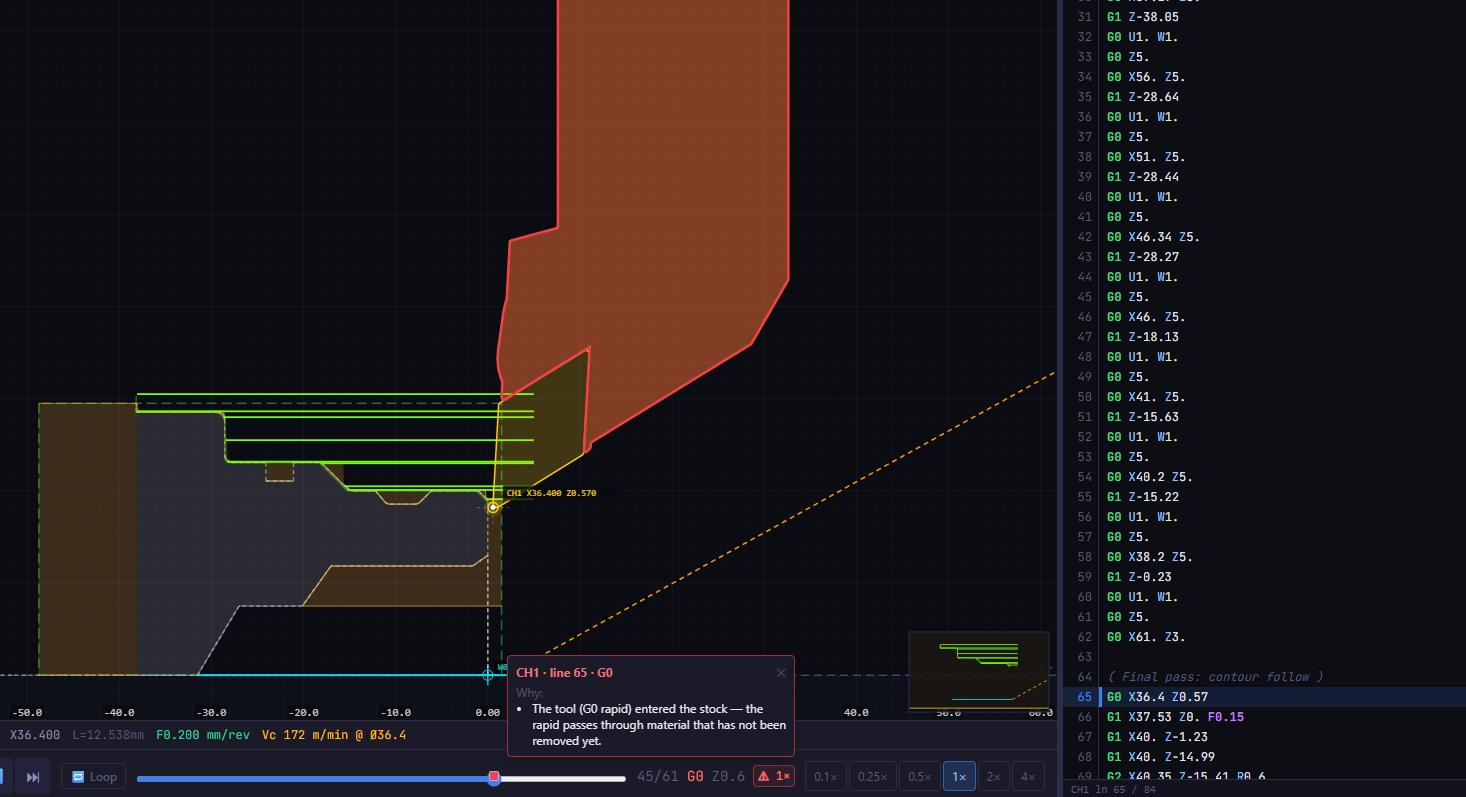
When a collision is found:
- Red outline of the holder at the exact collision point in the canvas.
- "Why" window with the line number, move type, and a plain-language explanation (e.g. CH1 · line 65 · G0: tool entered the stock on a rapid move — the material has not been removed yet).
- ⚠ N× badge during playback with the total collision count. Click it to jump to the next collision; click again to cycle through all of them. Collisions are also marked on the timeline.
| Reason | Meaning |
|---|---|
| Rapid in stock | G0 passes through material that has not been removed yet. |
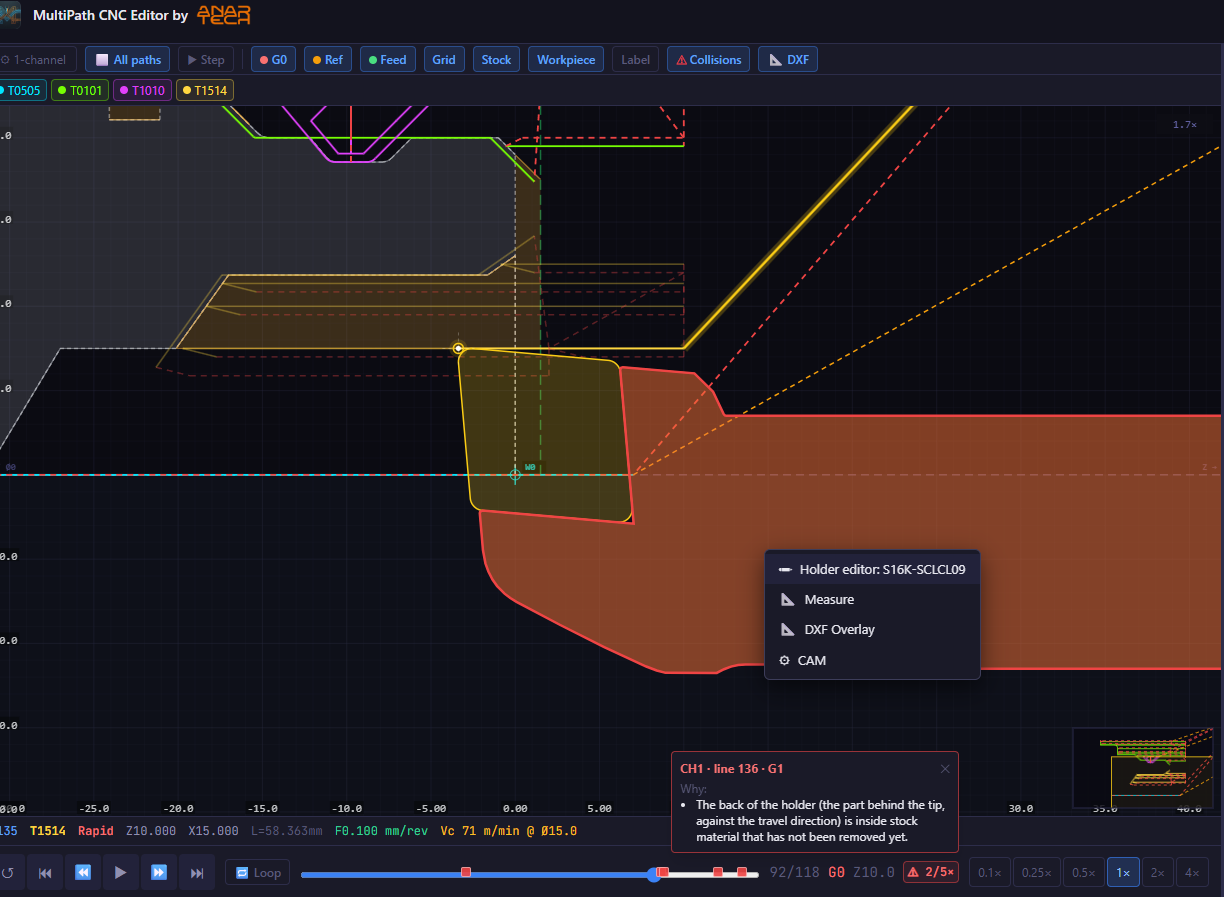
| Holder body in stock | The holder (not the cutting edge) is inside the material. The back of the holder behind the insert tip is flagged separately. |
| Holder / rapid across machined path | Crosses an already-turned surface. |
| Holder in DXF contour | The holder enters the finished part. |
| Insert in finished part | The cutting edge undercuts the DXF contour. |
| K1 holder × K2 holder | Both channel holders overlap at the same moment in time. |
Undercuts smaller than 0.5 mm are shown as an orange warning with the undercut amount — not a hard collision.
Holder editor: adjust any holder to match your shop
Holders and boring bars in a real shop are regularly ground down or modified to fit a bore or avoid damaging the part. The simulator can now reflect this: right-click any holder in the canvas → Holder editor. For grooving holders, the editor opens from CAM Grooving → Edit holder.
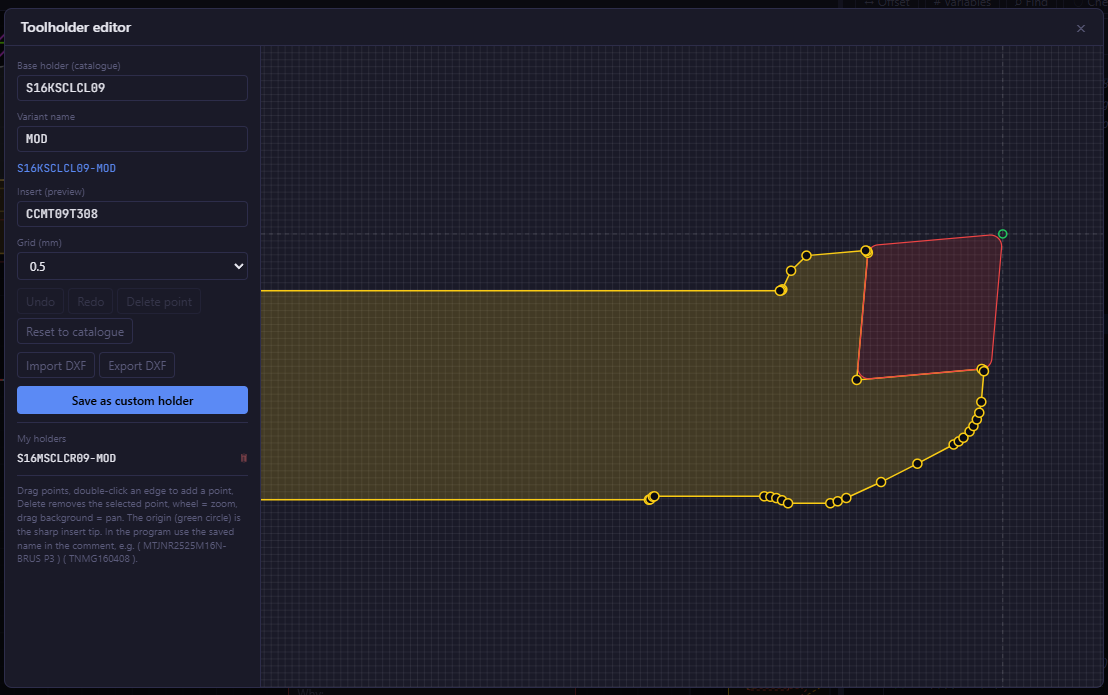
Walkthrough with boring bar S16K-SCLCL09:
1. The simulation reports a collision. The unmodified bar hits the stock below the axis (back of holder inside the hidden material).
2. Original shape. The Holder editor shows the catalog outline with the insert (CCMT09T308). The insert tip is the coordinate origin.
3. Edit the outline. Drag polygon points to match the ground-down shape from your shop. Double-click any edge to add a new point; press Delete to remove one.
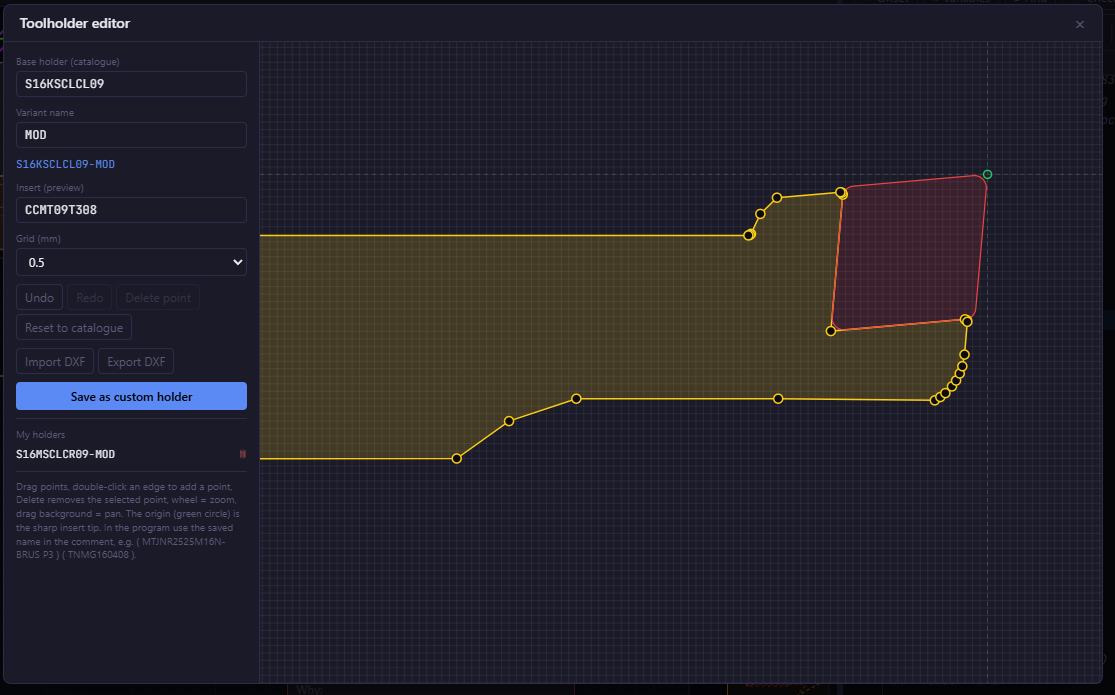
4. Result. With the modified bar, the collision disappears and the program runs clean.
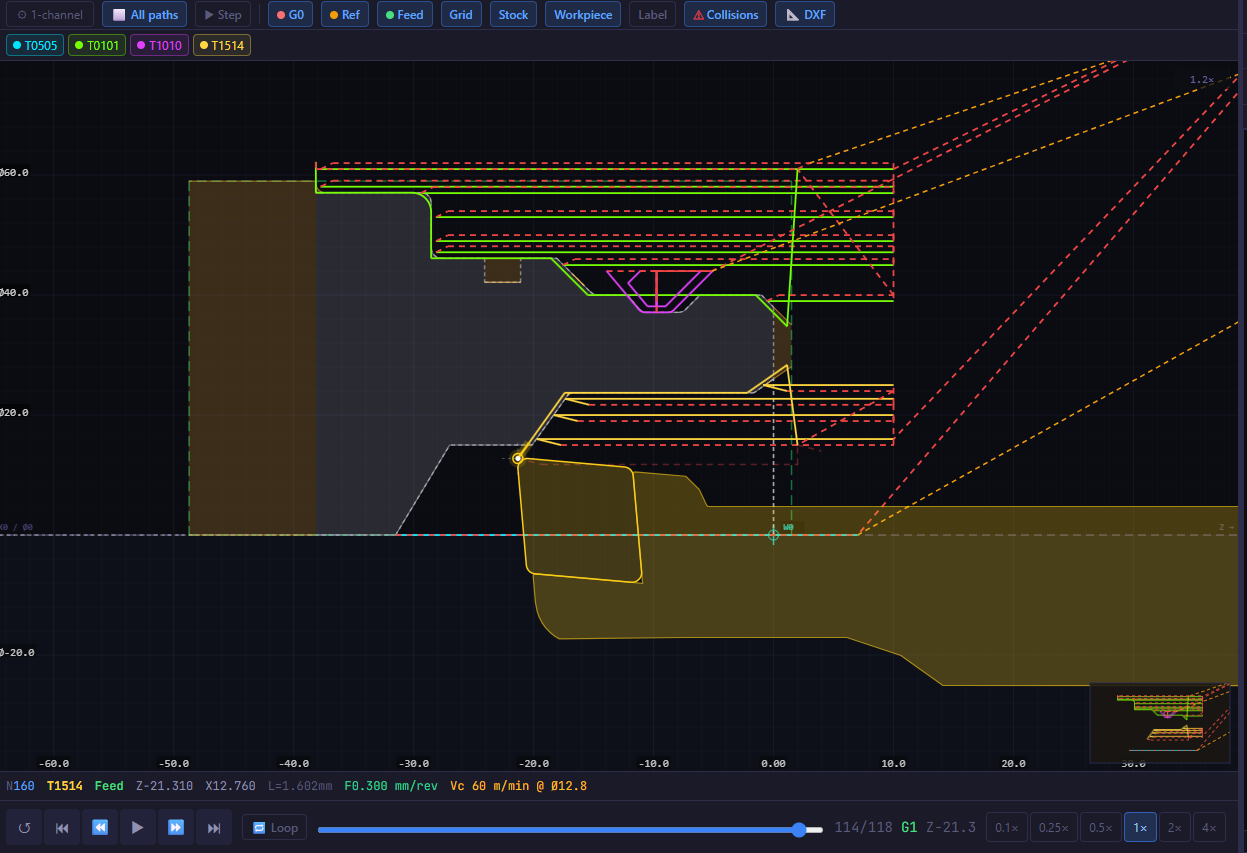
What the editor offers:
- Base holder from the catalog + a variant name (e.g.
MOD). The saved name becomesS16KSCLCL09-MOD. - Drag points, add points (double-click edge), delete points, Undo/Redo, grid snap (0.5 mm etc.), pan and zoom.
- Reset to catalogue to go back to the original shape.
- Import / Export DXF — load the holder outline from DXF or export it.
- Save as custom holder — the modified holder is saved as a custom variant in My holders. The original catalog entry is untouched.
After saving, the T-code comment in the program is updated automatically to the new holder name, so the simulator immediately draws and checks the modified shape. To reuse it in another tool, write the saved name (e.g. S16KSCLCL09-MOD) in the T-code comment just like any catalog holder name.
CAM Drilling: center drilling on the lathe axis
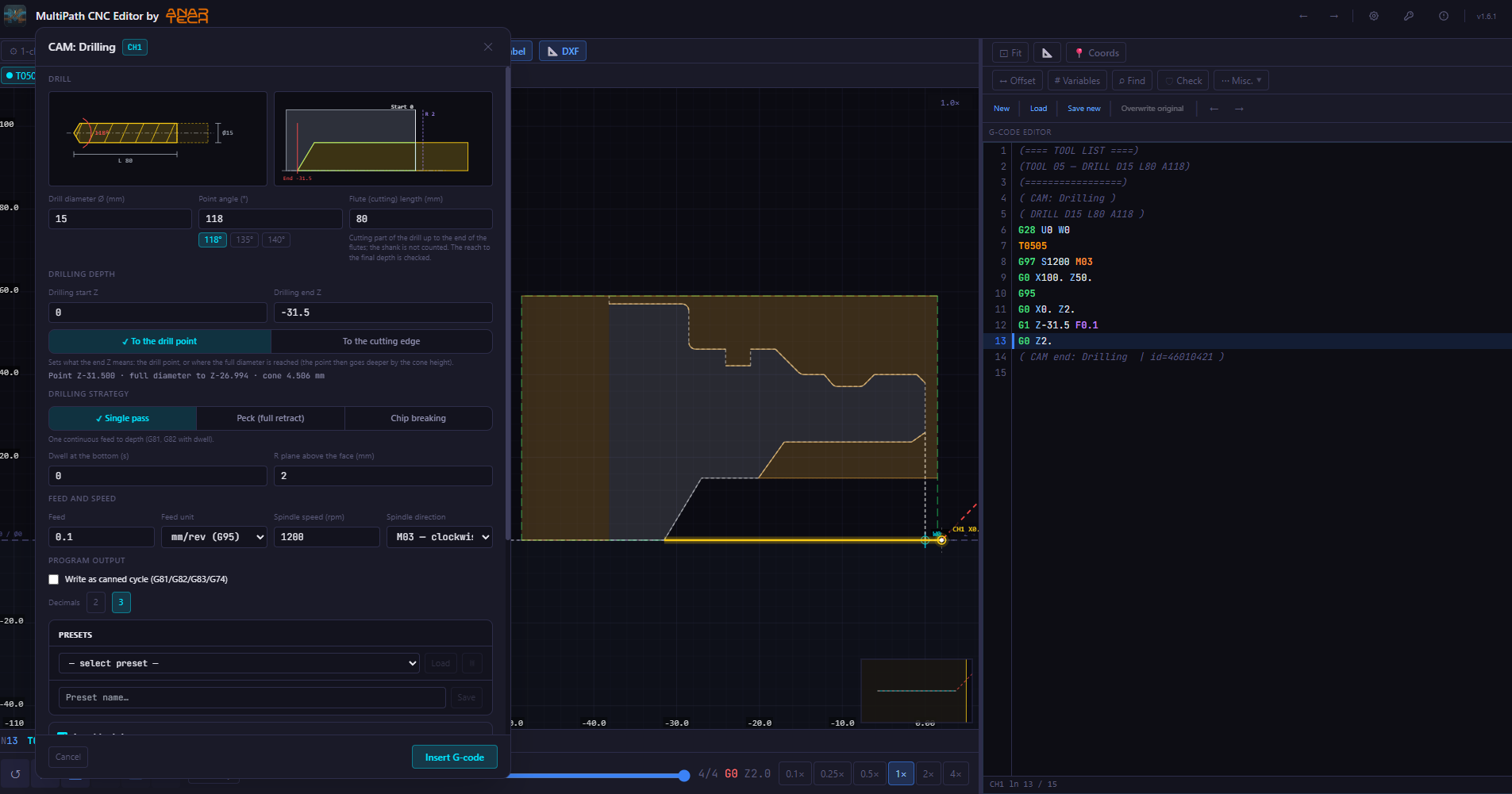
A new CAM module for center drilling on the lathe axis (X0). Open it from Misc → CAM: Drilling. No contour selection needed — the generated block is inserted at the cursor in the chosen channel (CH1 / CH2 for 2-channel programs).
- Drill geometry: diameter, tip angle (118° / 135° / 140° or custom), and cutting length. The drawing updates as you type.
- Depth: Z start and end, with a choice between to tip or to full diameter (the tip goes deeper by the cone height). The dialog shows the calculated value and warns if the drill is too short.
- Drilling strategy: Single pass, Peck (full retract), or Chip breaking (short retract). Plus dwell at the bottom and R-plane above the face.
- Feed and speed: mm/rev (G95) or mm/min (G94), RPM, direction (M03 / M04).
- Output: fixed cycle (G81 / G82 / G83 / G74) or expanded G0/G1 moves; 2 or 3 decimal places.
- Presets: save and reload a complete setup by name.
The generated block includes a tool comment (TOOL 05 — DRILL D15 L80 A118). The simulator reads it to draw the actual drill shape (tip cone + cylinder), removes the hole from the stock so a following boring bar does not report a false collision, and checks the drill against the stock.
CAM Grooving: tool library and custom holder
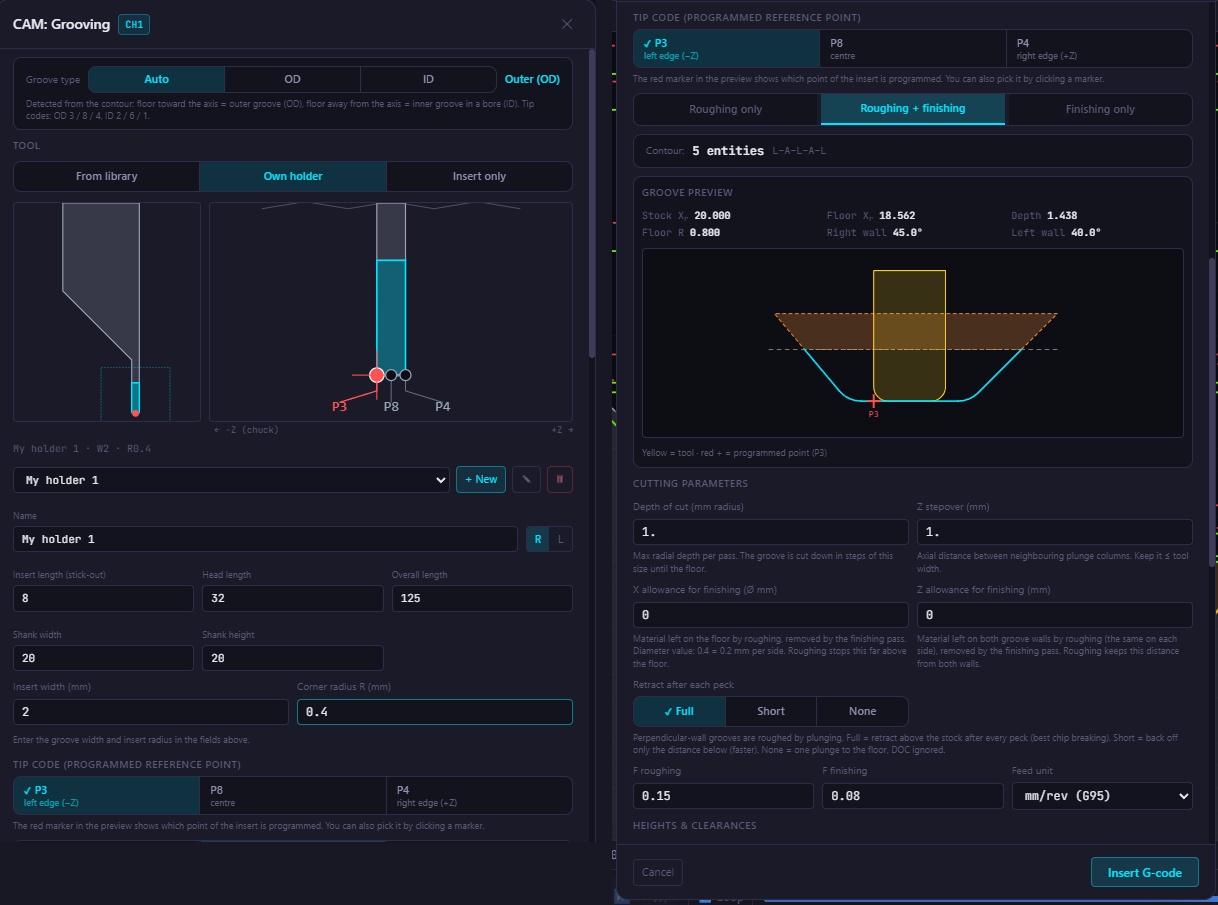
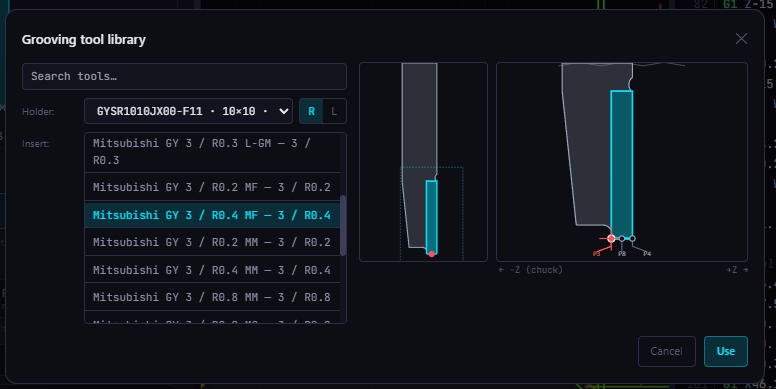
CAM Grooving now has a dedicated grooving tool library. The tool is selected at the top of the dialog using one of three options:
- From library: pick a holder (with or without adapter) and a compatible insert. The library includes Mitsubishi GY and GARANT holders, right- and left-hand (left-hand derived by mirroring). Only inserts that fit the holder by width and manufacturer system are shown. Confirm with Use.
- Own holder: define a simple custom holder by entering name, hand (R/L), insert overhang, head length, total length, shank dimensions, insert width, and corner radius. The holder is saved and reusable.
- Insert only: the original mode — just the insert width and radius, entered manually or from a catalog.
The selected holder and insert are written into the program comment, so the simulator draws them during playback and uses them for collision detection.
Everything else in the dialog remains as before: groove type detection (OD / ID), tip code (P3 left edge / P8 center / P4 right edge), roughing/finishing mode, peck retract strategy, feed parameters, and a live groove preview with the tool drawn in position.
For grooving holders from the library, the Edit holder button opens the grooving-specific holder editor directly inside the CAM Grooving dialog.
Between the tool catalog, the stock DXF layer, holder collision detection, and the holder editor, v1.6.2 gives you a complete pre-machining check loop: load the real stock, run the simulation, find any holder collision, edit the holder to match the ground tool in your shop, and confirm the program is clean — all without leaving the application.